Stop Windows From Sharing Your Internet, Turn Off This Hidden Setting for Faster Speeds
Stop Windows From Sharing Your Internet, Turn Off This Hidden Setting for Faster Speeds
Your Windows PC has been quietly doing something in the background that you probably never agreed to. Right now, while you game, stream, or attend a video call, your computer might be uploading pieces of Windows update files to complete strangers on the internet. Not a virus. Not a hack. Just a feature Microsoft turned on by default and never really told you about in plain English.
That feature is called Delivery Optimization, and once you understand what it does, you will want to either turn it off completely or at least dial it way back.
What Is Delivery Optimization and Why Should You Care?
Think of Delivery Optimization like a peer-to-peer file sharing system built right into Windows. When Microsoft rolls out an update, instead of every single computer downloading the whole thing from Microsoft's servers, your PC picks up pieces from other Windows computers nearby or across the internet, and in return, your computer uploads those same pieces to other people who need them.
On paper, that sounds smart. It reduces the load on Microsoft's servers and can technically speed up your own update downloads if other PCs nearby already have the files you need.
The problem? Your internet connection is not just sitting there with nothing to do. You are using it.
When Windows uploads update chunks to strangers on the internet, it is eating into your upload bandwidth. And if you have ever been in the middle of an online game, a Zoom call, or uploading a large file and suddenly noticed things getting choppy, Delivery Optimization could easily be the reason why.
Upload speeds are almost always slower than download speeds on home internet connections. A lot of people have download speeds of 100 Mbps or more, but their upload might only be 10 to 20 Mbps. When Windows starts sending chunks of update files to random computers in the background, it is taking a cut of that already limited upload speed without asking permission.
The Stuff Nobody Talks About: Disk Space
There is another side to this that most guides skip over. Delivery Optimization does not just use your bandwidth, it also stores a local cache of update files on your hard drive.
Windows holds onto these files even after updates are already installed, so it can share them with other PCs. That cache can grow to 10 GB, 20 GB, or sometimes more depending on your settings and how many updates have passed through.
Windows does clean this cache out periodically, but it fills back up again as new updates arrive. If your laptop or desktop is running low on storage, that is not a fun discovery to make.
Who This Actually Affects the Most
You might be thinking, “okay but I have unlimited broadband, does this really matter?”
Fair point. If you are sitting on a 500 Mbps fiber connection with unlimited data and a 2 TB SSD with plenty of space free, you might genuinely never notice Delivery Optimization running.
But for a lot of people, the trade-off just is not worth it:
- People on metered or limited data connections. Mobile hotspot users, people with data caps, anyone paying by the gigabyte. Delivery Optimization can chew through data fast.
- Gamers and streamers. If you are playing online or streaming to an audience, upload bandwidth matters a lot. Any background process eating into that will cause noticeable problems.
- Video call users. Zoom, Google Meet, Teams, FaceTime. All of these rely heavily on upload speed. If Windows is quietly uploading update files during a call, you are going to freeze and pixelate.
- People with older or slower connections. Not everyone has fast broadband. If your connection is already borderline, anything running in the background will make things worse.
How to Find the Setting (It Is Not Where You Expect)
Microsoft did not put this setting somewhere obvious. You are not going to find it by right-clicking the desktop or opening a simple Wi-Fi menu. It lives inside Windows Update settings, which most people only visit when Windows tells them to restart.
Here is how to get there:
- Press the Windows key and open Settings
- Click on Windows Update
- Click Advanced options
- Scroll down and click Delivery Optimization
Once you are there, you will see the page shown below, with a toggle labeled “Allow downloads from other devices.”
Option 1: Turn It Off Completely
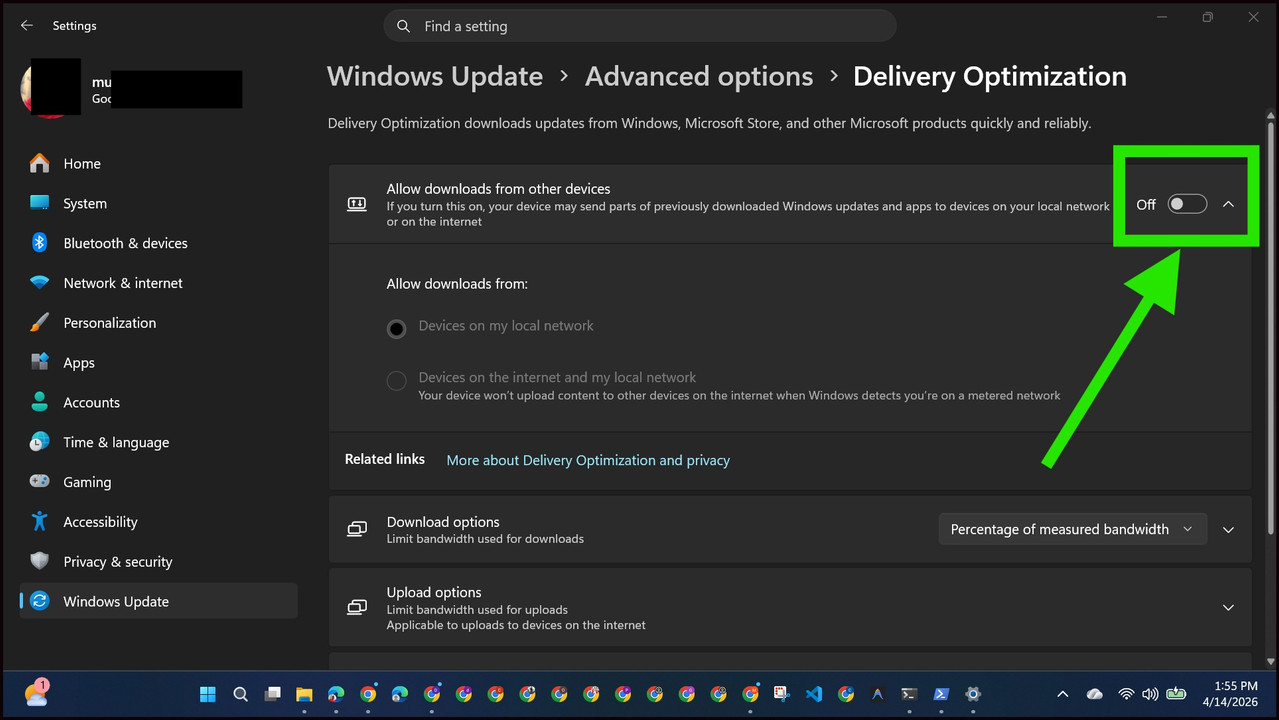
The simplest fix. If you want Windows to stop sharing your internet with everyone else, just flip the toggle off.
When “Allow downloads from other devices” is turned off, your PC will download all Windows updates straight from Microsoft's servers and will not upload anything to other computers at all. No background uploads. No sharing.
This is the right call if:
- You are on a metered or limited data plan
- Your internet is slow or inconsistent
- You regularly game, stream, or make video calls and notice lag
- Your storage is limited and you cannot afford a 10-20 GB cache sitting around
The only downside is that your updates will come entirely from Microsoft's servers, which is honestly just how it used to work before this feature existed. You will not notice any difference in how updates install.
Option 2: Limit It to Your Local Network Only
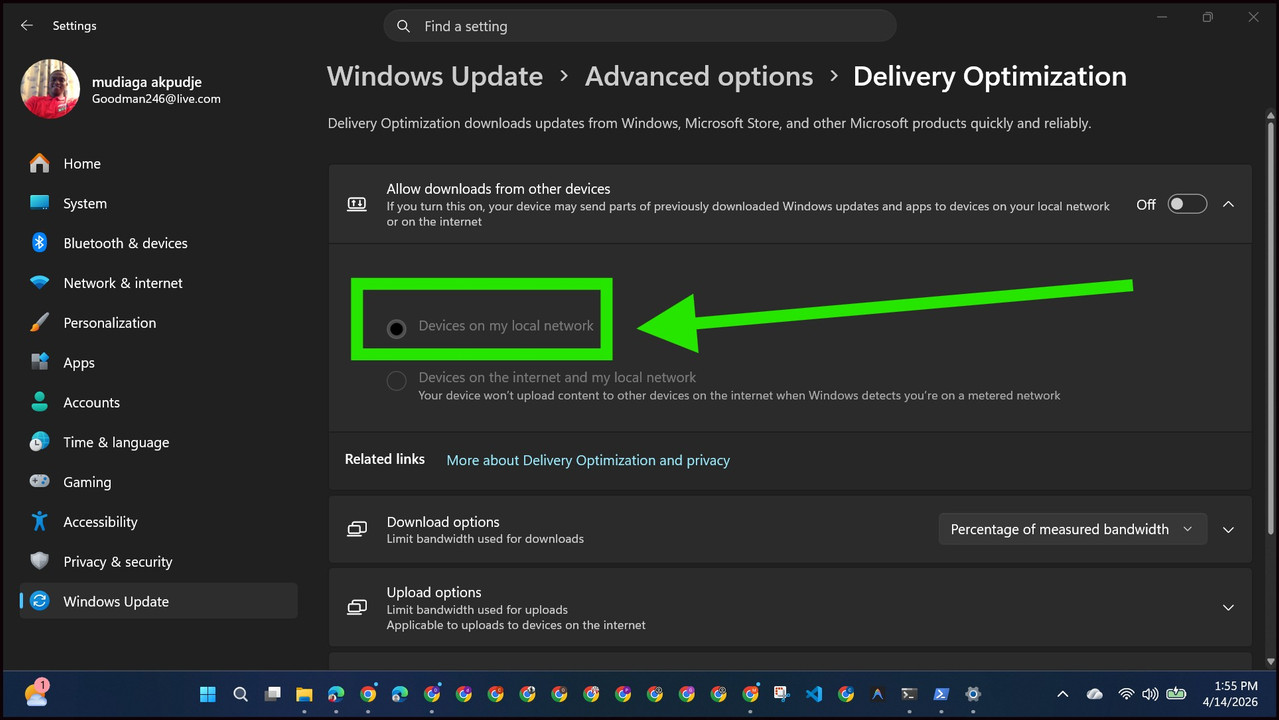
This is a middle-ground approach that actually makes a lot of sense if you have more than one Windows PC at home.
Keep the “Allow downloads from other devices” toggle on, but look at the options underneath. Change the setting from “Devices on the internet and my local network” to “Devices on my local network only.”
What this does is stop your PC from uploading to random strangers on the internet, but it still lets your own computers share updates with each other. So if you have a desktop and a laptop, and the desktop already downloaded an update, the laptop can grab it from the desktop instead of downloading it again from Microsoft. That actually saves you bandwidth rather than costing it.
This setting gives you the best of both worlds:
- No uploading to outside computers
- Faster updates between your own devices
- No impact on your gaming or video calls from external traffic
Option 3: Cap the Bandwidth Instead of Turning It Off
If you want to keep the feature running but stop it from interfering with everything else, you can set hard limits on how much bandwidth it is allowed to use.
Inside the Delivery Optimization settings page, look for Advanced options. You will find sliders that let you set download and upload limits as either a percentage of your measured bandwidth or a fixed speed in Mbps.
Setting the upload limit to somewhere between 5% and 10% of your total upload speed keeps things running quietly without making a dent in anything you are actively doing. If your upload speed is 20 Mbps, 5% is just 1 Mbps. That is barely noticeable in the background, but it means Delivery Optimization is still technically running if you care about contributing to Microsoft's peer network.
This option makes sense if:
- You have fast unlimited internet and do not mind the feature existing
- You just want to make sure it never interferes with gaming or calls
- You have multiple PCs and like the idea of local sharing but with guardrails
So Should You Actually Disable It?
Here is an honest answer: for most people, yes, you should either turn it off or limit it to local network only.
The feature exists to help Microsoft distribute updates more efficiently. It is not doing you any favors. You are not getting paid to share your bandwidth. You are not getting faster updates in return unless someone nearby happens to have the files you need. For the average person at home, the chance of that happening is low.
What you are getting is background upload activity that slows down gaming, video calls, and any other upload-heavy task, plus a chunk of your disk space being used for a cache you did not ask for.
Turning it off does not break anything. Windows updates will still arrive just as they always did. Your PC will download them from Microsoft's servers, install them, and move on. The only difference is that your internet connection will not be quietly working for someone else in the background.
A Few Things Worth Knowing Before You Change the Setting
Will this affect how fast my updates download?
Realistically, no. Microsoft has plenty of server capacity. Your update downloads will be just as fast, if not faster, when they come straight from the source.
Does this affect Windows Store apps?
Yes, Delivery Optimization also applies to Microsoft Store app downloads, not just Windows updates. Turning it off covers both.
What about Windows 10 vs Windows 11?
The steps are nearly identical. Both versions have Delivery Optimization under Windows Update settings. The layout looks slightly different between them, but the toggle and options are in the same place.
Will Windows turn this back on after an update?
Microsoft has been known to reset certain settings after major Windows updates. It is worth checking back on the Delivery Optimization page after installing a significant update to make sure your preference stuck.
A Quick Check Most People Skip
While you are in the Windows Update settings area, take a moment to look at the bandwidth options under “Download options” and “Upload options” on the same Delivery Optimization page. These sliders control how much bandwidth Windows Update is allowed to use overall, not just for peer sharing.
If Windows has been eating through your connection during update downloads, setting a download cap here can help too. You can tell it to use no more than a set percentage of your bandwidth for updates, so your regular browsing and gaming are not affected even when a big update is coming down.
It is a small tweak, but it puts you back in control of your own connection instead of letting Windows take whatever it wants whenever it wants.
The Bigger Picture: Your PC, Your Bandwidth
There is something a bit odd about a default setting that silently uses your internet to benefit other people's computers. Most people would not agree to that if Microsoft asked them plainly. The feature was never exactly hidden, but burying it four clicks deep inside Advanced Windows Update settings is not the same as being upfront about it.
Now that you know it exists, you can make a real choice about whether to keep it, limit it, or shut it down entirely. None of those options will hurt your PC. They will just make sure your internet connection is being used for what you actually want to do, not what Microsoft's servers need you to do.
If your connection has felt slower than it should be lately, this is one of the first settings worth checking. It takes about two minutes to change and it will not break anything. That is a pretty good deal for getting your bandwidth back.
- How Clientforce Automates Your Sales Process From First Contact to Closed Deals
- Traffic Magnets: How Simple Tools Can Generate 10,000+ Monthly Buyer Clicks From Google
- Build Your Entire Marketing System in 48 Hours Using Vibe Coding
- Building Production-Grade AgentScope Workflows Using ReAct Agents and Custom Tools
- Is Google Gemma 4 the Most Powerful Open-Source AI?